.png)
Editing an Assessment in TestTrick
In TestTrick, you can edit an assessment at any time, whether it is active or inactive. Editing allows you to make adjustments to the assessment content, configuration, and settings as needed.
When Can You Edit an Assessment?
Inactive Assessments
- These assessments have no candidates invited yet.
- You can edit everything in the assessment freely, including tests, custom questions, proctoring settings, and integration options.
Active Assessments
- These assessments have candidates invited.
- You can still edit the assessment, but changes will only affect candidates who have not yet started the assessment.
- Candidates who have already started or completed the assessment will continue with the original version they attempted.
How to Edit an Assessment
- click On three dots menu of the assessment you want to modify.
- Click the “Edit” button.
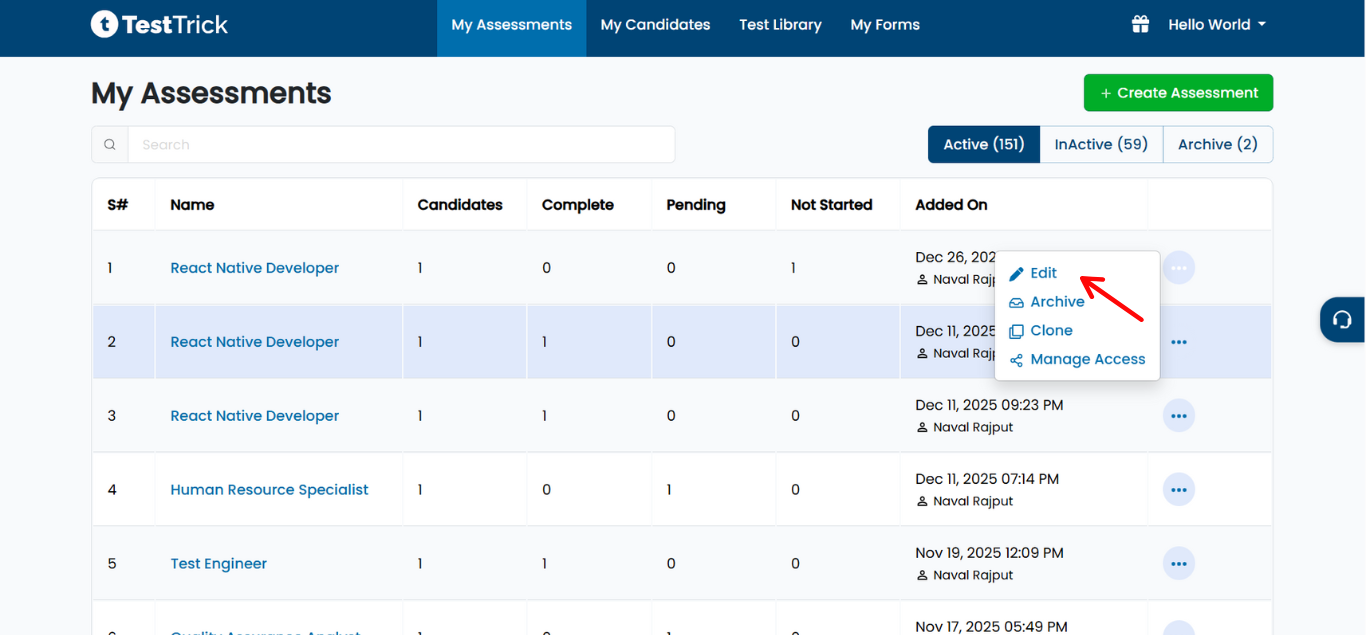
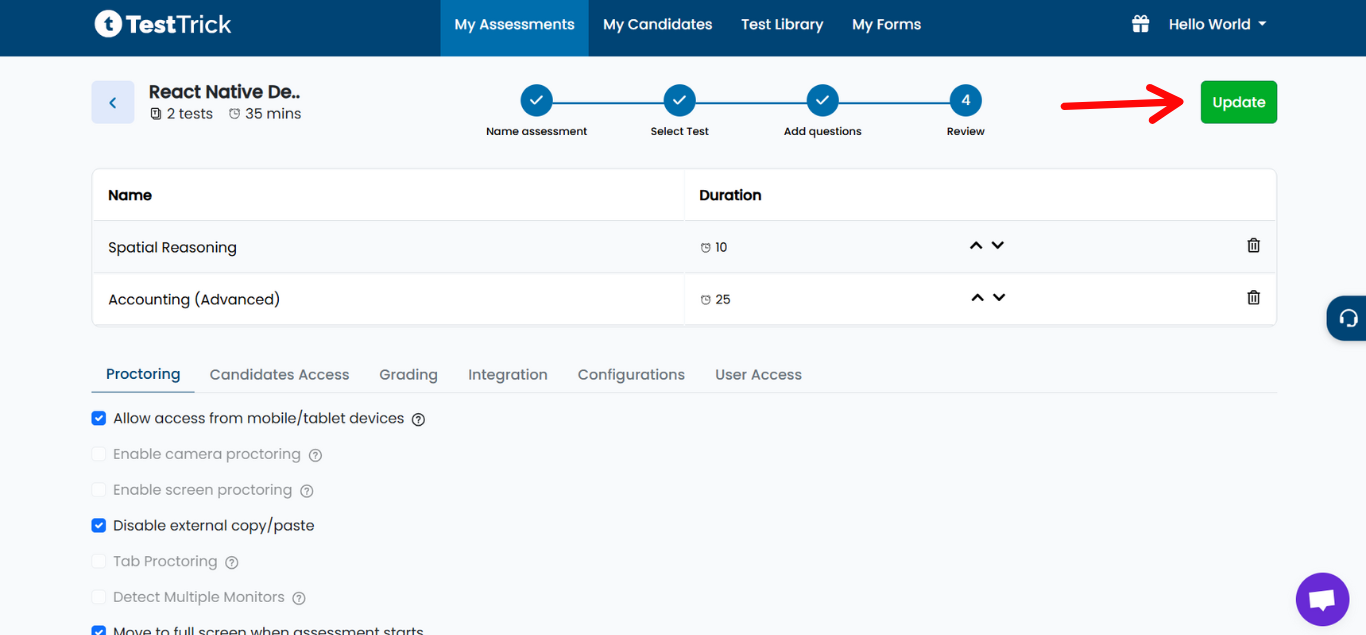
Make the required changes:
- Add or remove tests
- Edit existing tests (name, time, number of questions, randomization)
- Add or modify custom questions
- Update proctoring, candidate access, grading, or configurations
- Change integration with ATS or user access
Click Update to apply the changes.
Candidate Results and Reporting
- Candidate results and average scores are always calculated based on the version of the assessment each candidate attempted.
- This ensures accurate reporting, even if edits are made after some candidates have started.
- You can track progress and results without affecting the integrity of already completed assessments.
Quick Tips
- Always review which candidates have started the assessment before making major edits.
- Minor edits (like renaming tests or questions) are safe and reflected for new candidates automatically.
- Use this flexibility to update assessments without interrupting ongoing evaluations.