.png)
Managing Proctoring for Your Assessment
TestTrick provides flexible proctoring controls that allow you to monitor candidate behavior and maintain assessment integrity. Some options are automatically enabled or disabled based on the type of tests included in your assessment.
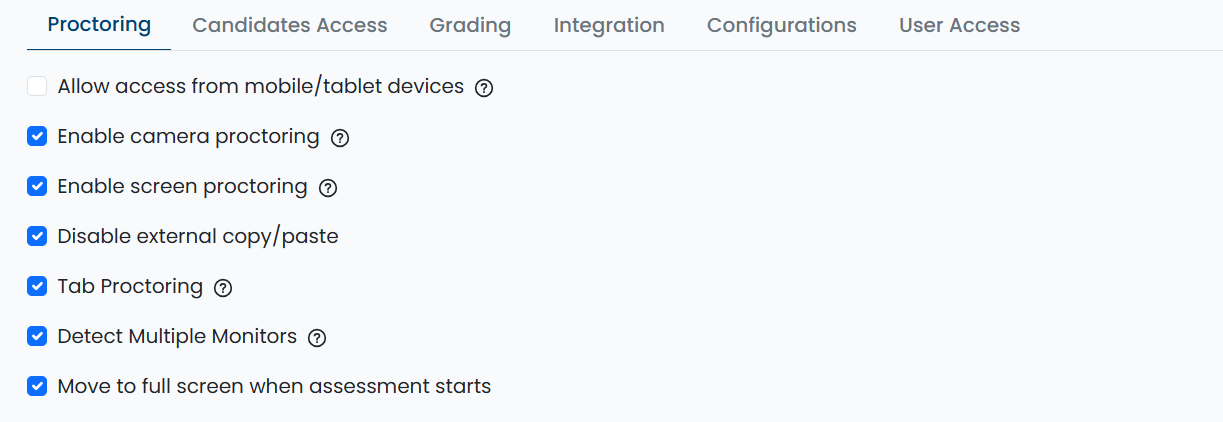
Allow Access from Mobile / Tablet Devices
-
Allows candidates to take the assessment on mobile or tablet devices.
This option is automatically disabled when the assessment contains:
- Coding questions
- Database-related questions
This ensures candidates have the required desktop environment for such tests.
Enable Camera Proctoring
- Enables webcam-based monitoring during the assessment.
- When enabled, random screenshots of the candidate are captured throughout the assessment to help maintain integrity.
- Candidates are prompted to allow camera access before starting.
Enable Screen Proctoring
- Monitors on-screen activity during the assessment.
- Helps detect unauthorized actions such as switching applications or accessing restricted content.
Disable External Copy / Paste
- Prevents candidates from copying and pasting content during the assessment.
- Helps reduce plagiarism and external content usage.
Tab Proctoring
- Detects when a candidate switches browser tabs during the assessment.
- This option is automatically disabled if your assessment includes company-created tests with test resources, where controlled tab access is required.
Detect Multiple Monitors
- Detects if a candidate is using more than one screen or monitor.
- Helps prevent the use of external displays for unauthorized reference.
Move to Full Screen When Assessment Starts
- Forces the assessment to open in full-screen mode when it begins.
- This option is automatically disabled if company-created tests include test resources that candidates need to access.
Security Breach Flagging
- Any security violations (such as tab switching, multiple monitors, camera or screen alerts) are automatically flagged.
- These flags help recruiters and evaluators review candidate behavior more effectively during result analysis.
- Flagged activities do not auto-disqualify candidates but provide additional context for better evaluation.
Summary
Proctoring in TestTrick helps you:
- Automatically enforce the right security settings
- Monitor candidates through camera, screen, and behavior tracking
- Flag potential integrity breaches for informed evaluation
- Maintain a fair and secure assessment environment