.png)
Candidate Assessment Attempt Flow in TestTrick
This article explains the complete flow a candidate follows while attempting an assessment in TestTrick, from opening the invitation link to submitting the final test.
Open the Assessment Link
- The candidate clicks the assessment invitation link shared via email or public link.
- The link opens the TestTrick assessment page.
Confirm Candidate Identity
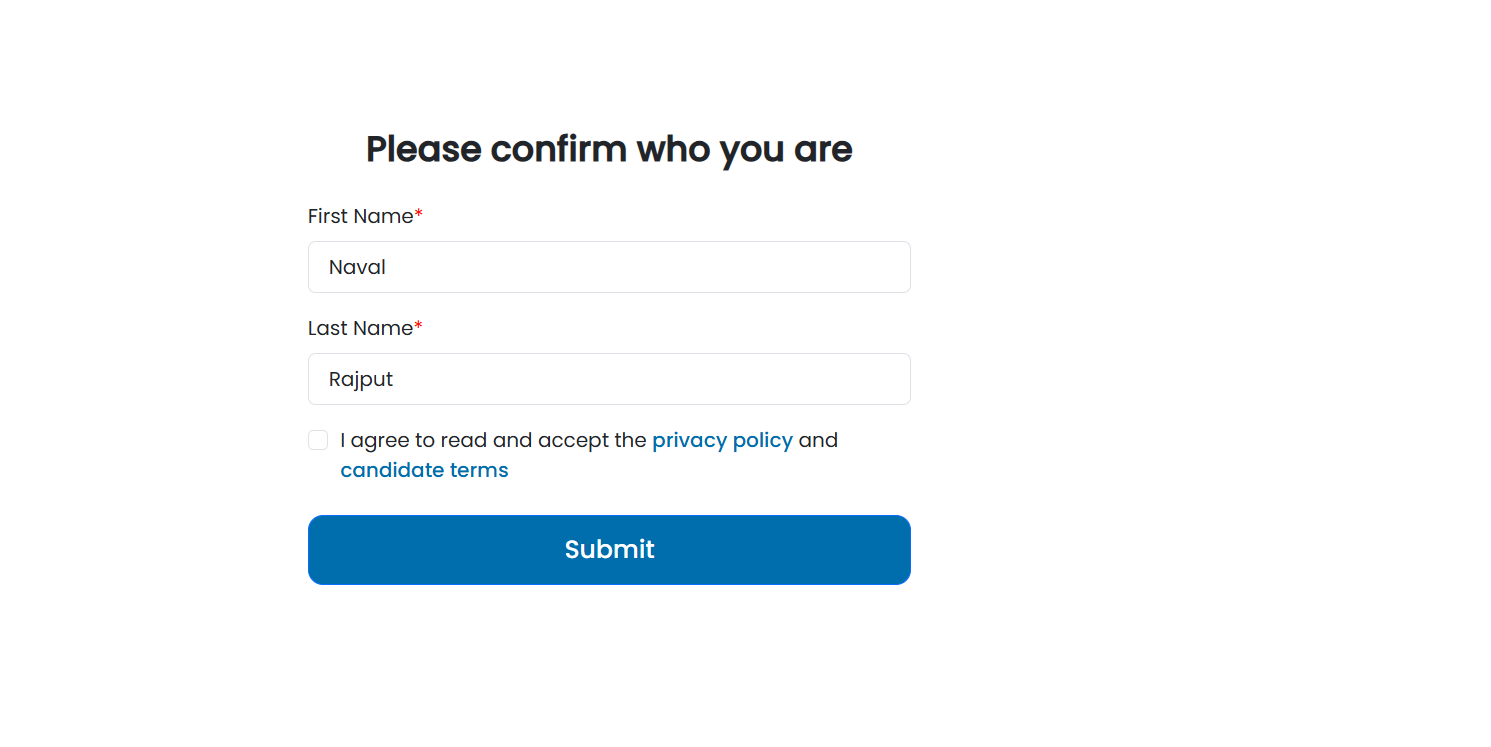
- The candidate is asked to confirm who they are.
- The candidate can edit the name if required.
- The candidate must:
- Read the Privacy Policy
- Read the Candidate Terms
- The candidate checks the consent box and clicks Submit to proceed.
Review Assessment Details
The candidate is shown mandatory assessment information, carefully read the information and Click Get Started to continue.
Camera Setup
Camera is required for proctoring and video questions.
The candidate clicks Allow Camera, then Capture, and finally Next.

⚠️ If camera access is blocked or not detected:
-
The alert appears:
“Please share your camera to continue.”

The candidate is guided to enable the camera via browser or device settings.
Microphone Setup
Microphone is required for video questions.
The candidate clicks Allow Microphone, speaks to test the audio, listens to playback, and then clicks Next.

⚠️ If microphone access is blocked:
The alert appears:
“Please allow microphone access to continue and check your audio.

The candidate is guided to enable the microphone via browser or device settings, or select a different device.
Screen Sharing
- After camera and microphone setup, the candidate is prompted to share their screen.
- Select “Entire Screen” – partial screen sharing is not allowed.

⚠️ If anything other than the entire screen is shared, this alert appears and the candidate cannot proceed.
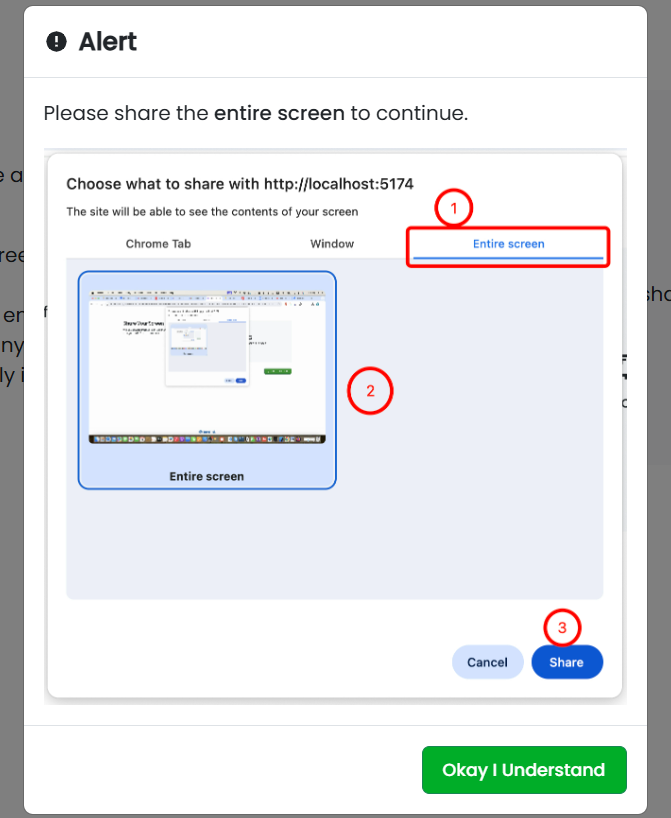
- Once screen sharing is successful, click Next.
Test Information Page
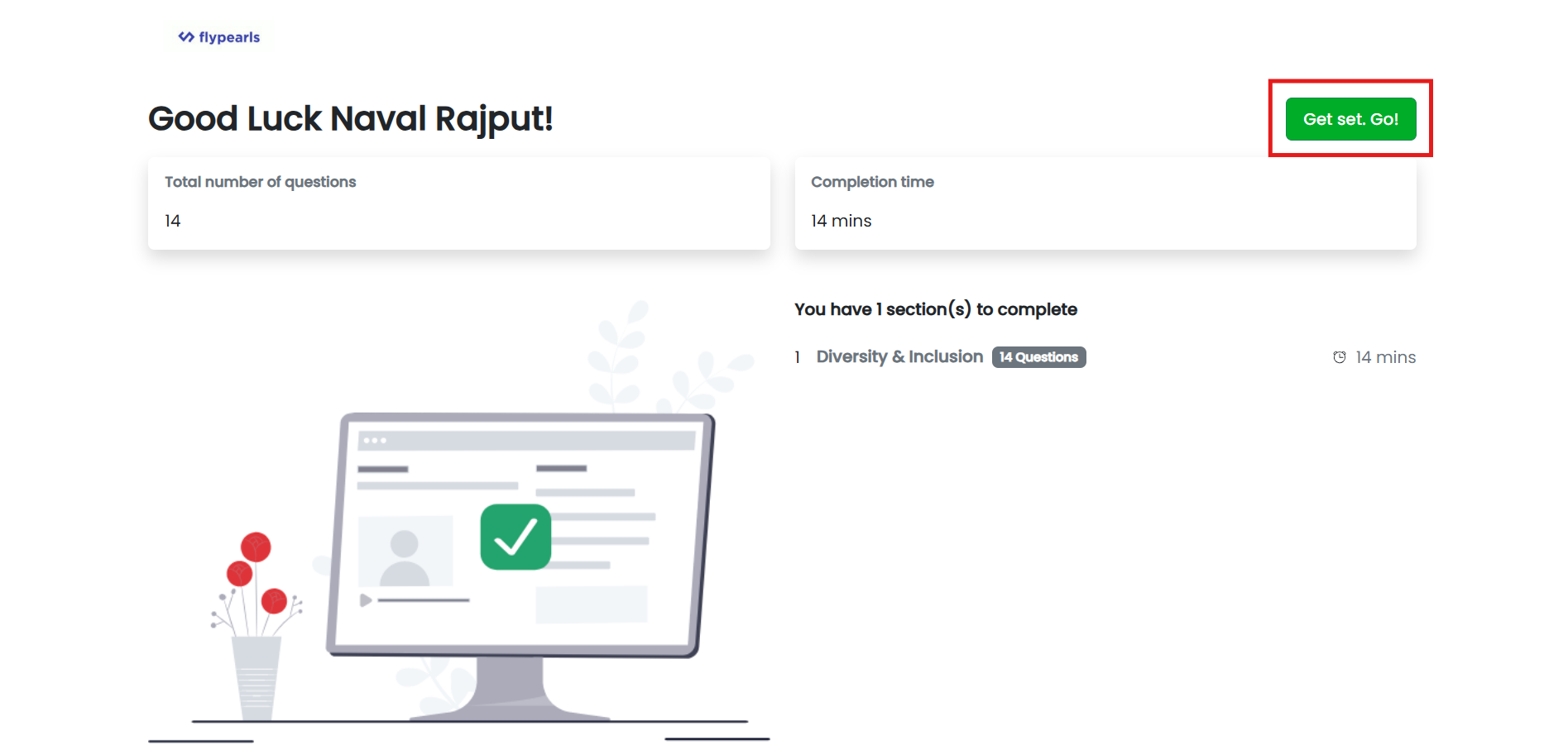
Before starting the test, the candidate sees:
- Number of tests
- Total number of questions
- Approximate time per test
- Click Get Set Go to proceed.
Read Test Instructions
-
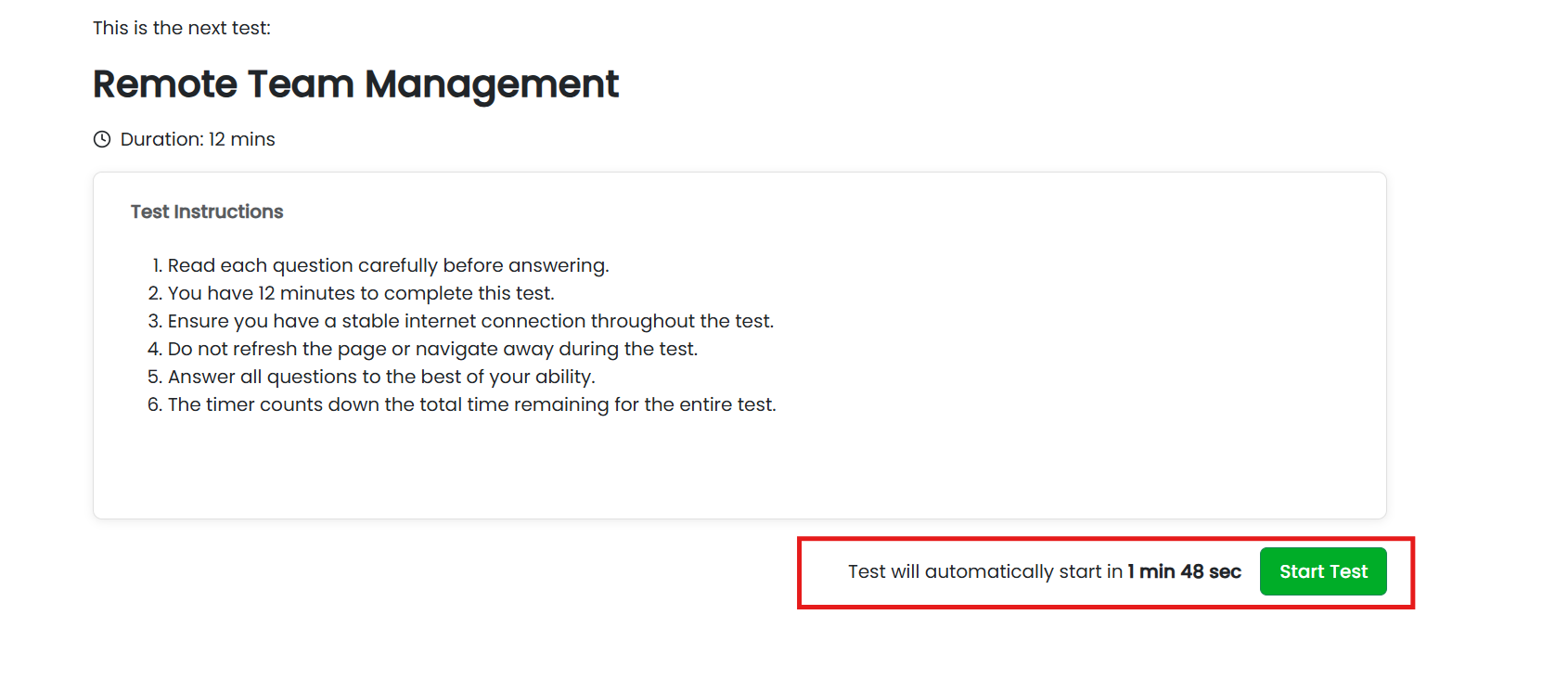
Instructions specific to the test are displayed.
The candidate can:
- Click Start Test, or
- Wait for the test to auto-start after 2 minutes
Attempt Questions
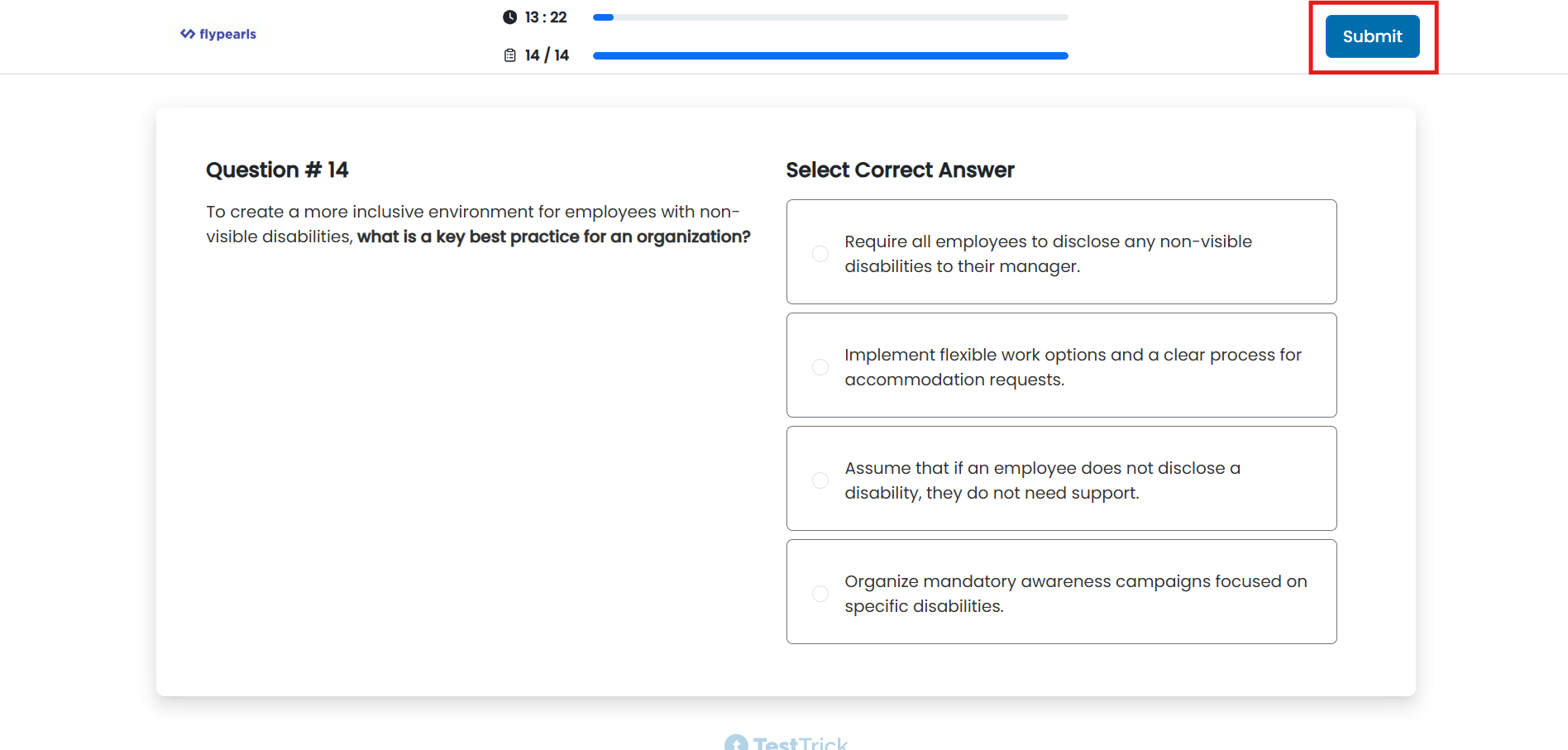
- The candidate:
- Reads each question
- Selects or enters answers
-
Clicks Next to move to the next question
After completing all questions:
- Click Submit Test
Continue with Next Test
- After submitting one test:
- Instructions for the next test automatically appear
- The candidate repeats the same process for all tests in the assessment.
Complete the Assessment
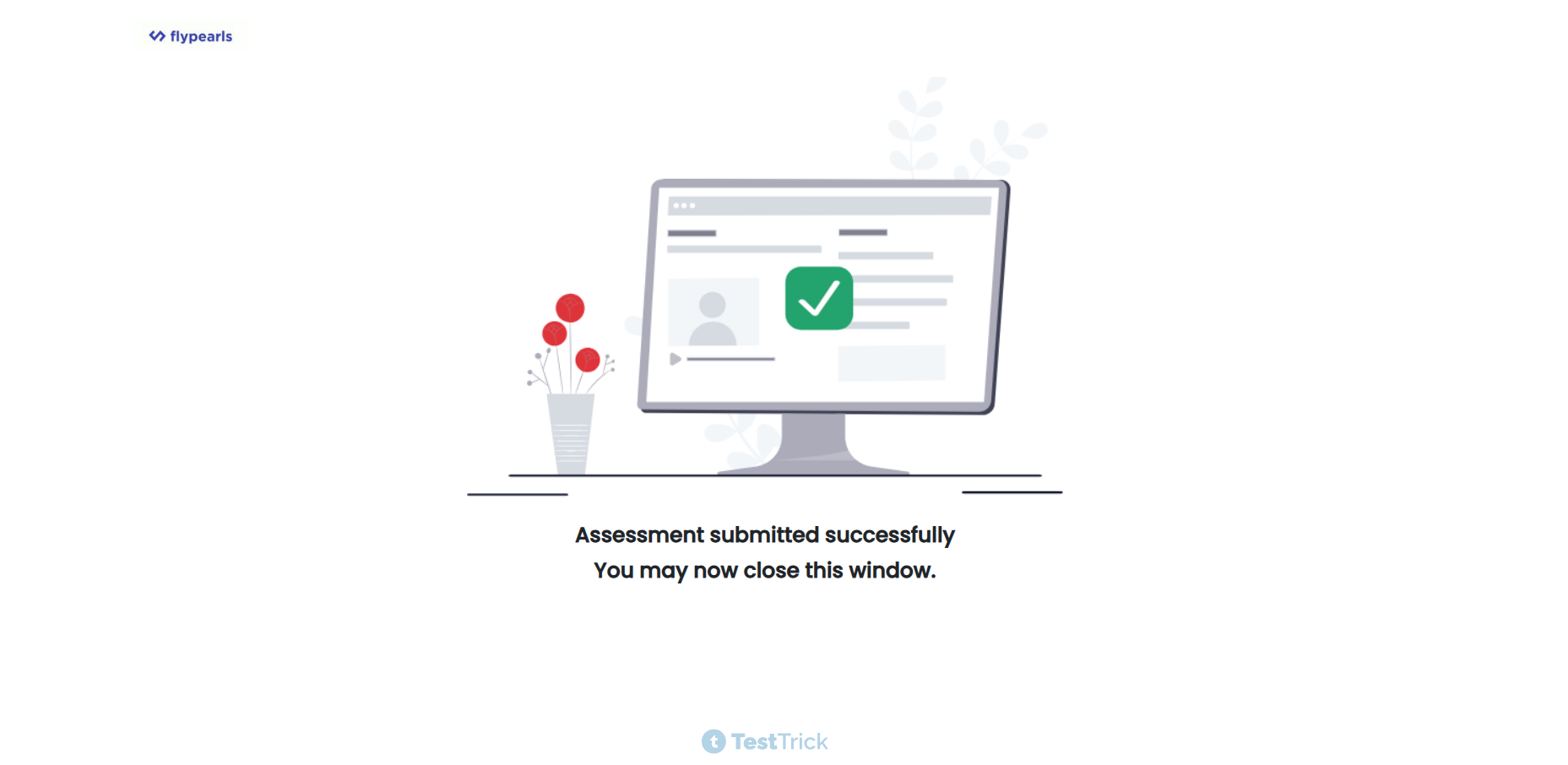
- Once the final test is submitted:
- The assessment is marked as completed
- The candidate sees a completion confirmation screen
Summary
The TestTrick candidate attempt flow ensures:
- Identity confirmation
- Policy compliance
- Secure screen and camera setup
- Clear instructions and smooth navigation
- Structured test-by-test progression
This process helps maintain fairness, transparency, and assessment integrity for all candidates.